
Storage Tab (Global Settings)
The Storage tab in FMX Global Settings manages where FMX stores its data, how long captured media is retained, and diagnostic logging configuration. Proper storage settings ensure your booth runs reliably without filling up disk space.
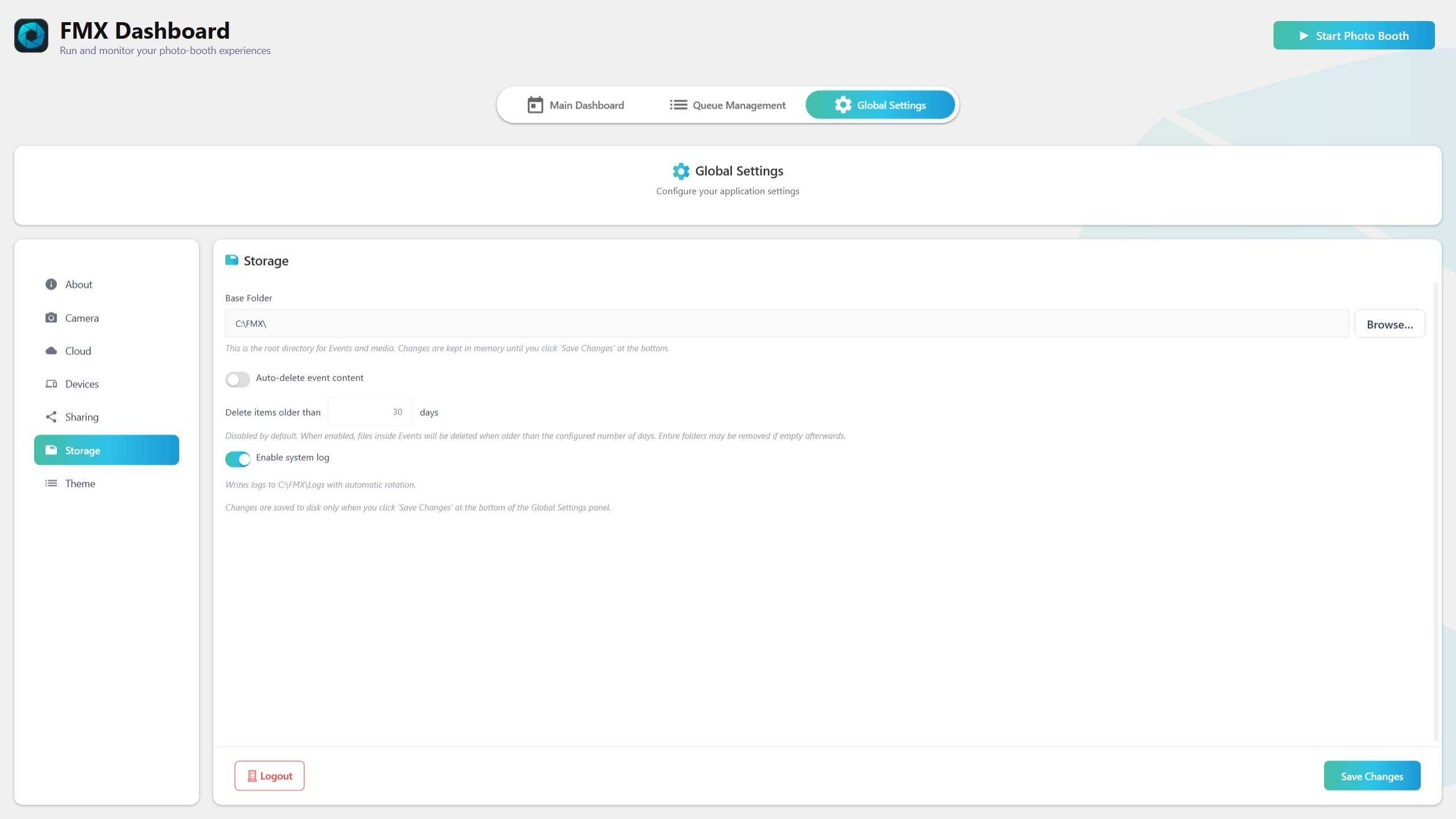
Base Folder
- Base Folder -- The root directory where FMX stores all of its data, including captured media, processed outputs, theme assets, and configuration files. The default location is
C:\FMX.
All subfolders (events, media, logs, themes) are created relative to this base folder. If you change the base folder, FMX will use the new location for all future data. Existing files in the old location are not moved automatically.
Tip: If your system drive has limited space, point the base folder to a secondary drive with ample storage. Photo and video files accumulate quickly during high-volume events.
Auto-Delete Old Content
FMX can automatically remove captured media and processed files after a configurable retention period to prevent disk space from filling up.
- Enable auto-delete -- Toggle to activate automatic cleanup of old content.
- Retention Days -- The number of days to keep files before they are eligible for deletion. Minimum is
1day; default is30days.
When auto-delete is active, FMX checks for expired content periodically and removes files that are older than the retention period. Only captured media and processed outputs are affected -- configuration files, themes, and logs are not deleted by this feature.
Tip: For recurring booth installations, set retention to match your event cycle (e.g., 7 days if you have weekly events). For one-off events, you may want to back up files externally and set a short retention period to free space quickly.
Logging
FMX includes built-in diagnostic logging to help troubleshoot issues and monitor booth operation.
Enable Logging
- Enable Logging -- Toggle to turn diagnostic logging on or off. When enabled, FMX writes detailed operational information to log files.
Log Categories
- All Categories (recommended) -- Logs all events across every FMX subsystem. This is the recommended setting for general troubleshooting, as it captures the full picture.
- Filtered Categories -- Logs only the selected subsystems. Use this to reduce log volume when you are investigating a specific area (e.g., only camera or only cloud sync).
Log Location and Rotation
- Log files are stored in
C:\FMX\Logs. This log path is fixed and does not move when the Base Folder is changed. - FMX automatically rotates log files to prevent them from growing indefinitely. Old log files are archived and eventually removed.
Tip: When contacting Foto Master support about an issue, enable logging with All Categories selected, reproduce the problem, then share the log files from your Logs folder. Enabling logging before reproducing the issue ensures the relevant diagnostic data is captured.
Was this helpful?
Related articles
FMX for Windows: Customizing Your Experience
Everything at a photo booth event — the overlays, the countdown, the on-screen text, the email guests receive, the gallery they get a link to — is something you control. This guide
FMX for Windows: System Requirements
Before installing FMX on your Windows computer, make sure your system meets the requirements below. Meeting the recommended specifications will ensure smooth performance during eve
Installing FMX on Windows
When to Use First-time installation of FMX on a Windows PC Reinstalling FMX on the same machine Upgrading FMX to a newer version using the latest installer Requirements Windows 10
Building a FMX Preset From Scratch: Video Tutorial
This video covers the basics of building a workflow and layout in FMX — a good starting point before exploring the individual workflow step articles.
FMX For Windows: Full Software Video Tutorial
This video is a complete walkthrough of FMX for Windows — covering the dashboard, session lifecycle, Select/Sync/Play, camera and printer setup, workflow configuration, and Cloud s