
Troubleshooting Windows Security Blocks in FMPrint
This guide addresses a specific connectivity issue identified in FMPrint version 1.0.26 and above. In rare cases, Windows Security may incorrectly flag the application, preventing it from launching or connecting properly.
How to Identify the Issue
You can confirm if you are experiencing this specific block by looking for the following indicators:
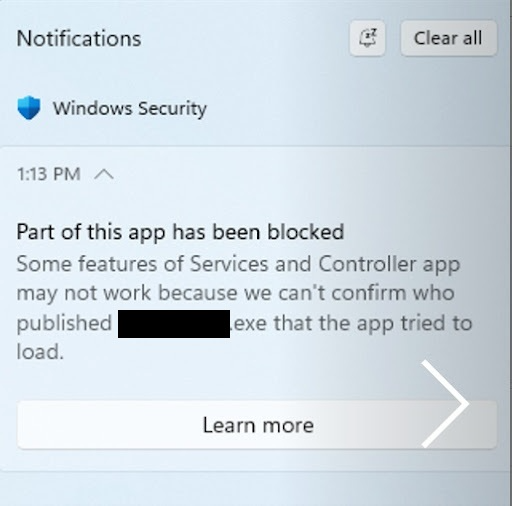
1. Windows Security Notification
A system notification will appear in the bottom-right corner of your screen stating:
"Part of this app has been blocked... we can't confirm who published {AppName}.exe"
2. DLL Error Messages
You may see a pop-up error message in the center of your screen referencing specific DLL files failing to load or being denied access.
The Solution: Adjusting Smart App Control
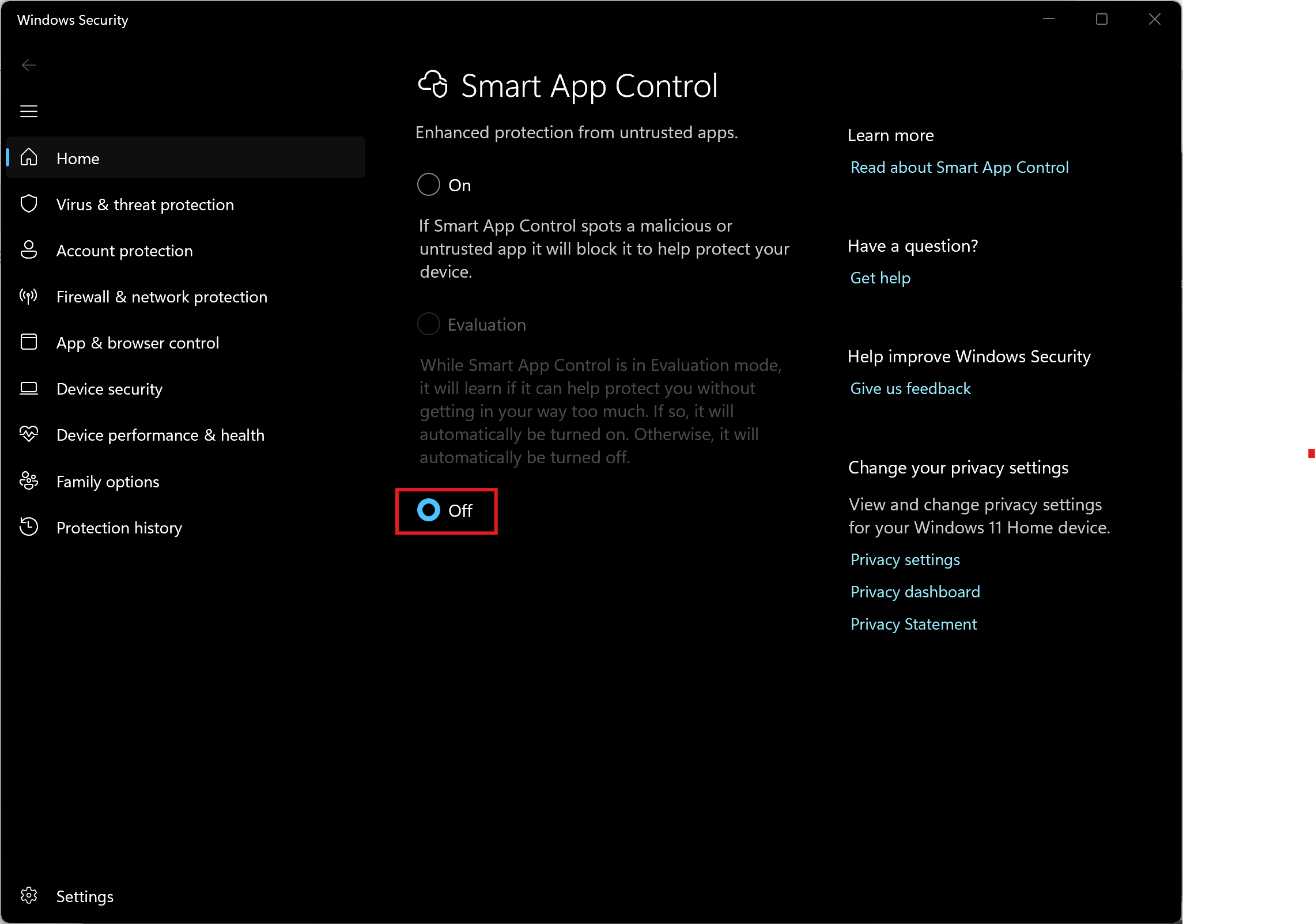
Because this block is triggered by a specific Windows 11 security feature called Smart App Control, you will need to manually disable it to allow FMPrint to run. How to disable Smart App Control:
Open your Windows Start Menu and type "Smart App Control" into the search bar.
Select the Smart App Control system setting from the list.
In the window that opens, select the Off position.
Important Note: Windows may prevent you from turning this back on without a full system reinstall, as it is a "learning" feature that must be active from the moment Windows is installed. Disabling it will allow FMPrint to function without further interference.
This workaround is intended for machines where FMPrint connectivity is essential and being blocked by local security policy. If you have questions regarding the security implications of this change, please contact your IT administrator.
Need Further Assistance?
If the steps above do not resolve the issue, our technical team is ready to help. To speed up your resolution, please have the following ready when you contact us:
Screenshots: A photo or screen capture of any error messages you see.
Log Files: If possible, navigate to your FMPrint installation folder and locate the log file.
Version Number: Confirm you are running version 1.0.26 or higher.
Was this helpful?
Related articles
Photos Taken But Not Printing
Quick Checks First Is the printer powered on with the ready light solid? Is paper loaded with the ribbon from the same box? Is the USB cable connected between the printer and booth
Booth Computer Running Slowly at Events
Common Causes Windows Update downloading in the background Antivirus scanning during the event Low disk space on the system drive Too many hours without a restart — memory buildup
How to Export All Event Data
This article explains how to export photos, videos, guest contact data, survey results, and event statistics from Foto Master Cloud.Exporting Photos and Videos Log in to cloud.foto
License Activated but Events List is Empty
You logged in successfully, your Cloud Licenses tab shows your license as Activated, but when you open FMX (or your booth software) the events list is empty -- nothing to select, n
License Activation Issues
Activating your Foto Master software should take just a minute or two. If something isn't working, this page walks through the fixes step by step. Before anything else, confirm whi