
How to Troubleshoot a Selection Screen in FMX for iPad
Selection screens built with FMX on iPad are often used to merge different workflows or choose the prompt they want to run. When the screen does not behave as expected—such as taps not registering, selections appearing in the wrong place, or the layout looking distorted—there are several key areas to review before concluding that something is wrong with the system.
This guide walks through the most important troubleshooting steps to help you quickly identify and fix the problem.
1. Verify the iOS Version
A typical cause of malfunction is running the app on an unsupported iOS version.
What to Check
FMX selection features for iPad require:
✅ iOS 18 or higher
If the device is running iOS 16 or 17, the interface may:
-
Fail to register touch input correctly
-
Render background media design incorrectly
-
Misalign selection zones
-
Crash or freeze during interaction
How to Confirm
On the iPad:
-
Open Settings
-
Tap General
-
Select About
-
Check the iOS Version
If it is below 18, update the device before continuing troubleshooting.
2. Confirm the Clickable Areas Are Positioned Correctly
If users can see the screen but cannot tap or select the correct areas, the problem is often related to how the clickable areas were placed during setup.
Possible Symptoms
-
Tapping a box selects the wrong option
-
Nothing happens when an area is pressed
-
Touch works only in unexpected parts of the screen
-
Selections appear offset from the visuals
What to Review
In FMX:
-
Re-open the multi-selection screen editor
-
Inspect each clickable area
-
Make sure every clickable area lines up visually with the buttons or images shown on the screen
-
Confirm the area was not accidentally resized or shifted
If the design was copied from another workflow, the coordinates may no longer match the iPad display.
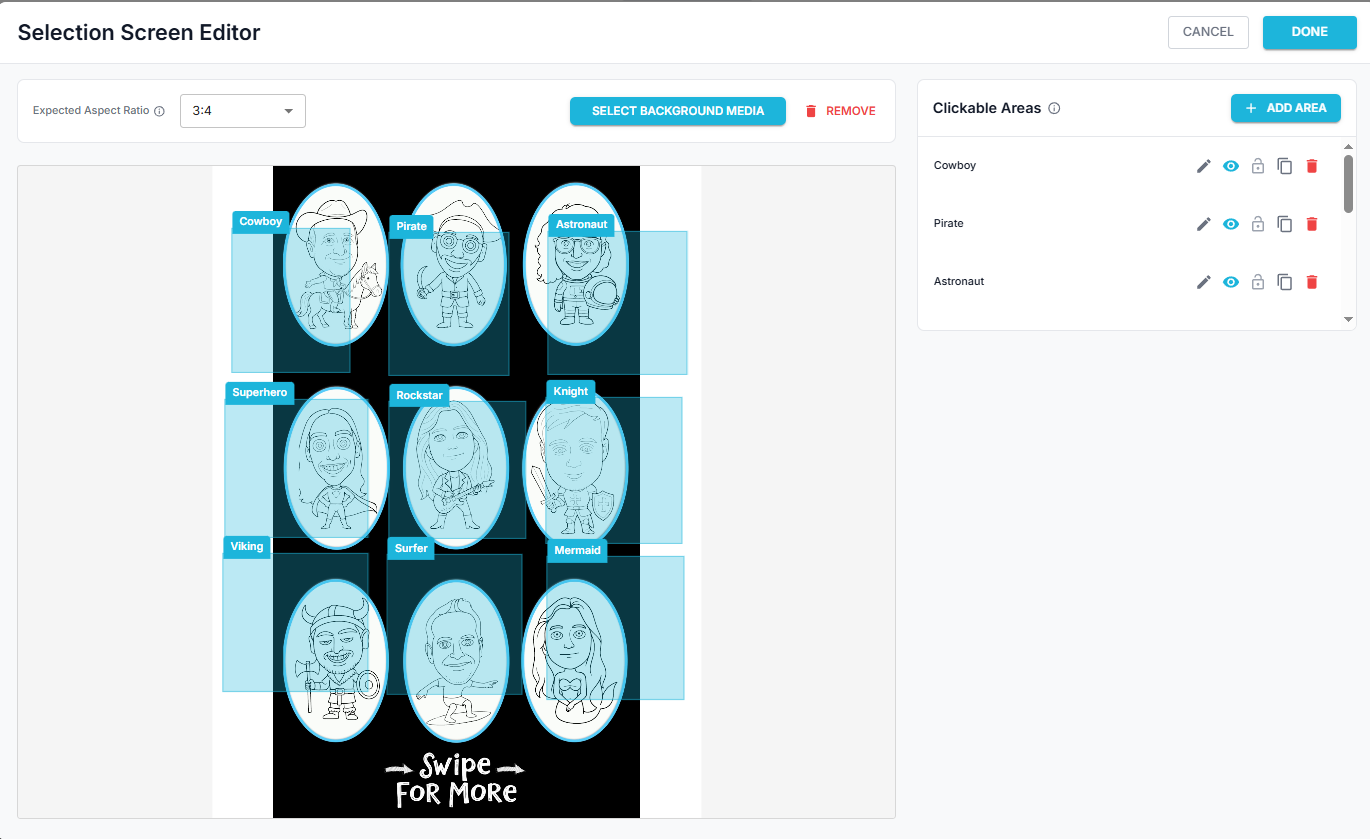
3. Check the Aspect Ratio: iPad is 3:4, not 9:16
Another frequent cause of selection issues is an incorrect screen ratio.
Our Selection Screen Editor default is 9:16, which is typical for phones or vertical displays. However, iPads use a 3:4 aspect ratio. If the Selection Screen was created for 9:16 and then deployed to an iPad, the visual layout may scale—but the touch zones may not.
Why This Matters
When the ratio is wrong:
-
Background media stretch or shrink
-
Buttons move visually
-
Touch areas stay in their original positions
-
Selections no longer line up
This creates the illusion that the screen is broken, when in reality the coordinates are simply mismatched.
What to Do
-
Edit the Selection Screen in the Workflow you are using
-
Change the Expected Aspect Ratio to 3:4
-
Save and re-sync the workflow to the FMX iPad
Always design and test multi-selection screens specifically for the device type that will be used at the event.
4. Best Practices to Avoid Issues at Events
To prevent failures during live events:
-
✅ Test the workflow
-
✅ Confirm the iOS version before deployment
-
✅ Avoid reusing phone-ratio layouts on tablets
-
✅ Double-check selection zones after any design change
-
✅ Perform a full sync after updating your workflow
-
✅ Run multiple tap tests in every corner of the screen
Spending a few minutes validating these details ahead of time can save hours of troubleshooting on-site.
Final Checklist
Before an event, confirm:
-
✔ iPad is running iOS 18 or higher
-
✔ Multi-selection areas align with visuals
-
✔ Selection Screen Editor uses a 3:4 aspect ratio
-
✔ Layout was tested directly on the device
-
✔ Latest workflow version is synced on your FMX iPad
Was this helpful?
Related articles
Photos Taken But Not Printing
Quick Checks First Is the printer powered on with the ready light solid? Is paper loaded with the ribbon from the same box? Is the USB cable connected between the printer and booth
Booth Computer Running Slowly at Events
Common Causes Windows Update downloading in the background Antivirus scanning during the event Low disk space on the system drive Too many hours without a restart — memory buildup
How to Export All Event Data
This article explains how to export photos, videos, guest contact data, survey results, and event statistics from Foto Master Cloud.Exporting Photos and Videos Log in to cloud.foto
License Activated but Events List is Empty
You logged in successfully, your Cloud Licenses tab shows your license as Activated, but when you open FMX (or your booth software) the events list is empty -- nothing to select, n
License Activation Issues
Activating your Foto Master software should take just a minute or two. If something isn't working, this page walks through the fixes step by step. Before anything else, confirm whi