
Selection Screen: Background Media
The Selection Screen transforms a single image or video into an interactive menu. Guests tap different areas on the screen to choose what happens next — selecting a photo style, layout, video template, or switching to a different experience entirely.
Background Media
Before using a Selection Screen, you need to prepare your Background Media.
Background Media is a video (MP4/MOV) or image (PNG/JPG) that you upload into the Selection Screen Editor. It acts as the visual interface where interactive tap areas are placed, allowing guests to navigate to different nodes or screens within your workflow.
For optimal display, use the dimensions specified in the Custom Assets: Dimensions and Format Specifications article.
You can design your background media using free tools like Photopea or Canva, giving you full flexibility to create a custom, on-brand interface for your workflow.
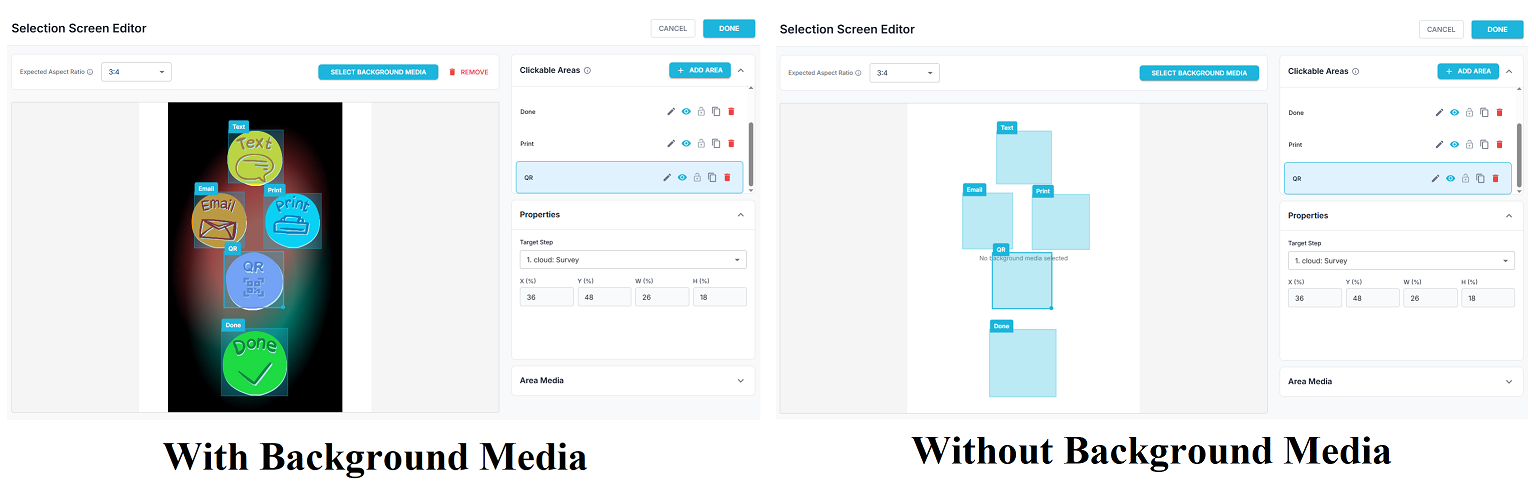
The image above shows the difference between using Background Media and having no Background Media in the Selection Screen Editor.
With Background Media (left)
A custom image or design sits behind the clickable areas, making the screen look polished and easy for guests to understand — the tap zones visually match the design.
Without Background Media (right)
Only plain placeholder boxes are visible with no background design, making the screen look unfinished and less engaging.
Adding Background Media significantly improves the appearance and usability of the selection screen.
Note: Set the Expected Aspect Ratio to 3:4 when using the Selection Screen with FMX for iPad.
Was this helpful?
Related articles
FMX for iPad: Customizing Your Experience
Everything at a photo booth event — the look of the experience, the on-screen text, the animations, the email guests receive, what shows on the external display — is something you
FMX for iPad: System Requirements
FMX for iPadOS is a native Swift application that delivers the full photo booth experience on Apple's iPad platform. Before installing, ensure your iPad meets these requirements. S
FMX for iPad: Main Dashboard
When something goes wrong with FMX for iPadOS, diagnostic logs and systematic troubleshooting are your best tools for identifying and resolving issues. This guide covers how to col
Installing FMX on iPad
Requirements Before You Start iPad running iPadOS 16 or later (iPadOS 17+ recommended) Apple ID with access to the App Store Active Foto Master Cloud account with an iPad license A
FMX for iPad: Global Settings Overview
Global Settings is the central configuration panel in FMX for iPadOS. All device-level settings -- camera, appearance, printing, display, and more -- are managed here. The iPad set