
Razor Mirror Booth: Touchscreen Setup
Complete the following steps in order before attempting any touch calibration. Skipping these may prevent touch from working correctly.
Part 1: Set Up Screen Orientation
- Open the FMX app and go to Global Settings → External Screen.
- Set the mode to Mirroring and the orientation to Vertical.
- Go back to your iPad's home screen.
- Physically rotate the iPad from vertical to horizontal.
- Enable Orientation Lock.
- Rotate the iPad back to vertical.
- Relaunch the FMX app.
💡 Need a visual walkthrough? Watch the following video for guidance.
Part 2: Adjust Trackpad and Mouse Speed
- Confirm that the iPad is connected to the booth
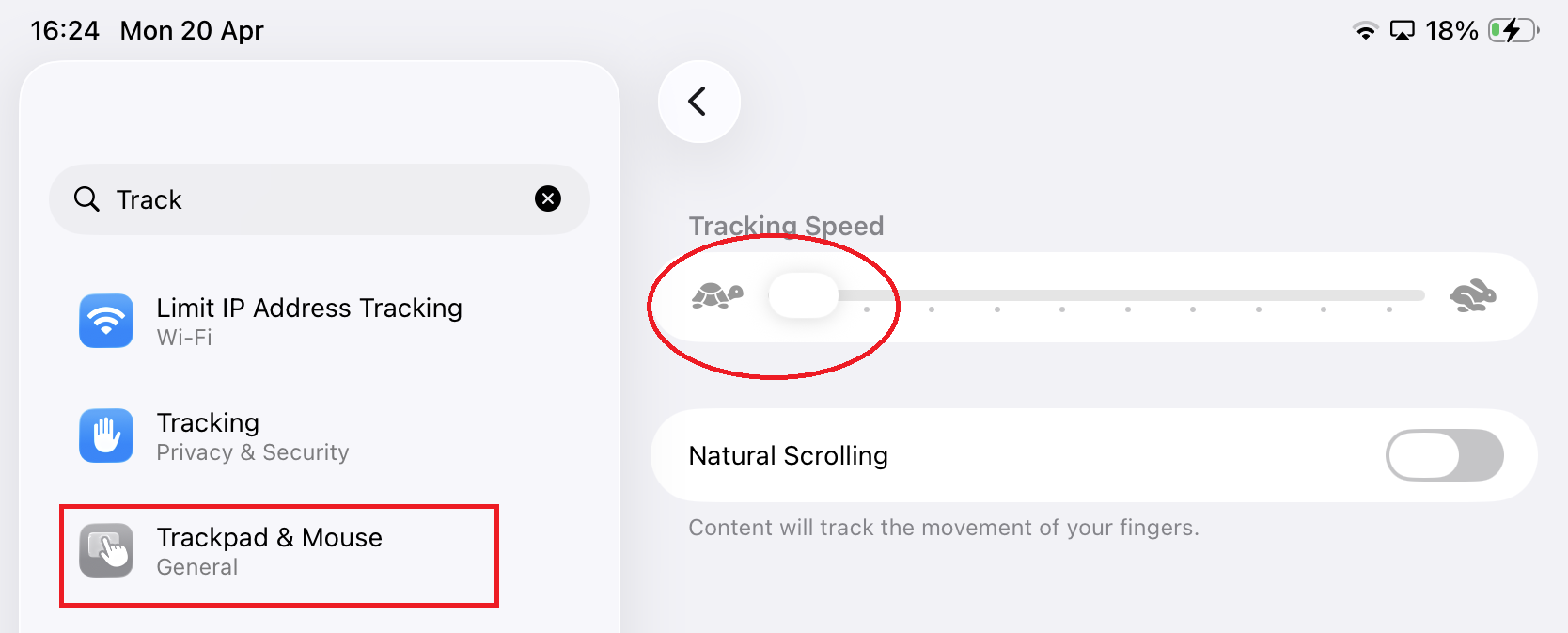
- Go to your iPad's settings and search for Trackpad & Mouse.
- Set the tracking speed to the lowest setting (indicated by the 🐢 turtle icon) while the iPad is connected to the booth.
Was this helpful?
Related articles
Razor Mirror Booth: Turn Key Package
Congratulations on your Razor Mirror Booth! 🎉 Your Turn Key package includes the complete booth with integrated LED and touch system, iPad, printing laptop, printer, and starter m
Razor Mirror Booth: Bring Your Own Package
Congratulations on your Razor Mirror Booth! 🎉 This guide is for operators who purchased the Bring Your Own Package — you supply the iPad, printing laptop, printer, and media. Tip:
Razor Mirror Booth Overview
What Is the Razor Mirror Booth? The Razor Mirror Booth is Foto Master’s ultra-slim iPad mirror photo booth, designed for operators who want a premium mirror-style experience in the
Razor Mirror Booth: Software Setup
The Razor Mirror Booth runs on FMX for iPad — Foto Master's photo booth software for iPadOS. This guide covers everything from installation to running your first test session. Step
Running Your First Event with Razor Mirror Booth
This guide covers everything from creating the Cloud event to exporting post-event deliverables. Follow it in order for your first Razor Mirror Booth event, then adapt it into your